# Calendar Preferences

##

### Preferences <a href="#preferences" id="preferences"></a>

Calendar preferences give you the ability to change specific parameters around Meeting location, time, and language.

<figure><img src="https://3652255517-files.gitbook.io/~/files/v0/b/gitbook-x-prod.appspot.com/o/spaces%2Fz59Vqr25L1jt6xe60FDS%2Fuploads%2Fgit-blob-5418614fc29671dd2551589bcc15c2e7c23f2f06%2F14.%20Calendar%20Preferences.png?alt=media" alt=""><figcaption></figcaption></figure>

### Updating My Preference <a href="#updating-my-preference" id="updating-my-preference"></a>

#### User Preference <a href="#user-preference" id="user-preference"></a>

* **Zoom** Choose this if you wish to meet over zoom. It sets the default Zoom Meeting in the CRM as the preference.
* **Google meet** Choose this for a meeting over a Google Meet. It sets the default Zoom Meeting in the CRM as the preference.

![](https://3652255517-files.gitbook.io/~/files/v0/b/gitbook-x-prod.appspot.com/o/spaces%2Fz59Vqr25L1jt6xe60FDS%2Fuploads%2Fgit-blob-3ac3c5964b99e31dcf28bf76407d10c0a2a8563a%2Fmy%20Pref.png?alt=media)

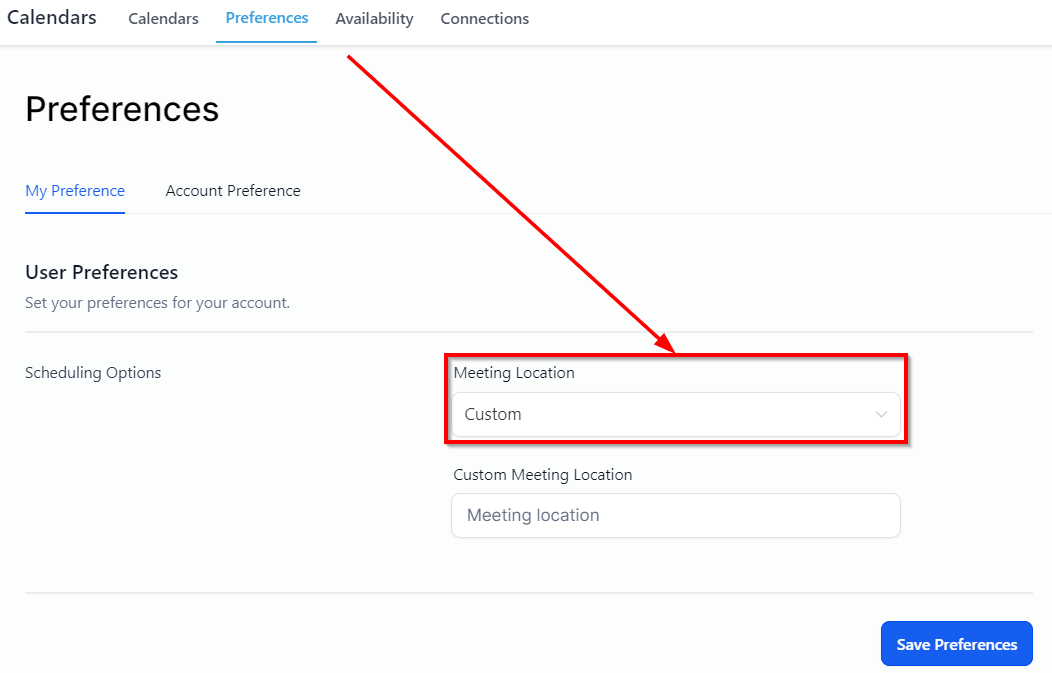
* **Custom** You can also set a custom location for your meeting. Custom location can also be a phone number in case you want to get on a discovery call with your client before you jump on a zoom.
  1. **Meeting Location** Select the meeting venue; Zoom Meeting or Google Meet, and connect.

<figure><img src="https://3652255517-files.gitbook.io/~/files/v0/b/gitbook-x-prod.appspot.com/o/spaces%2Fz59Vqr25L1jt6xe60FDS%2Fuploads%2Fgit-blob-fd1bfd47cc446919d1684fae794fbf4906406b8d%2F12.%20My%20preferences%20-%20Meeting%20Location.png?alt=media" alt=""><figcaption></figcaption></figure>

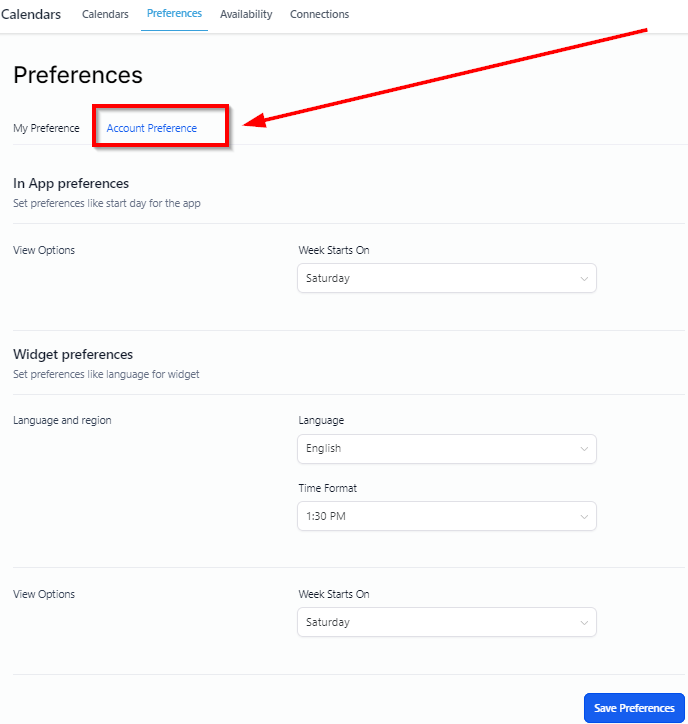
### Account Preference <a href="#account-preference" id="account-preference"></a>

Here you can set up account preferences.

<figure><img src="https://3652255517-files.gitbook.io/~/files/v0/b/gitbook-x-prod.appspot.com/o/spaces%2Fz59Vqr25L1jt6xe60FDS%2Fuploads%2Fgit-blob-fd5d8c9478872355585de2a940c5e9a957b272b1%2F7.1%20Account%20Preference.png?alt=media" alt=""><figcaption></figcaption></figure>

#### In-App Preference <a href="#in-app-preference" id="in-app-preference"></a>

**View Options**With view options, you can choose the day of your preference for the calendar week to start. As shown in the image below, you can select Monday as a starting day of the week or it can also be Sunday if you would like it to be.

<figure><img src="https://3652255517-files.gitbook.io/~/files/v0/b/gitbook-x-prod.appspot.com/o/spaces%2Fz59Vqr25L1jt6xe60FDS%2Fuploads%2Fgit-blob-a446eaaab124fa330b863f42695aca8c500a14d2%2F15.%20View%20Options.png?alt=media" alt=""><figcaption></figcaption></figure>

#### Widget Preference <a href="#widget-preference" id="widget-preference"></a>

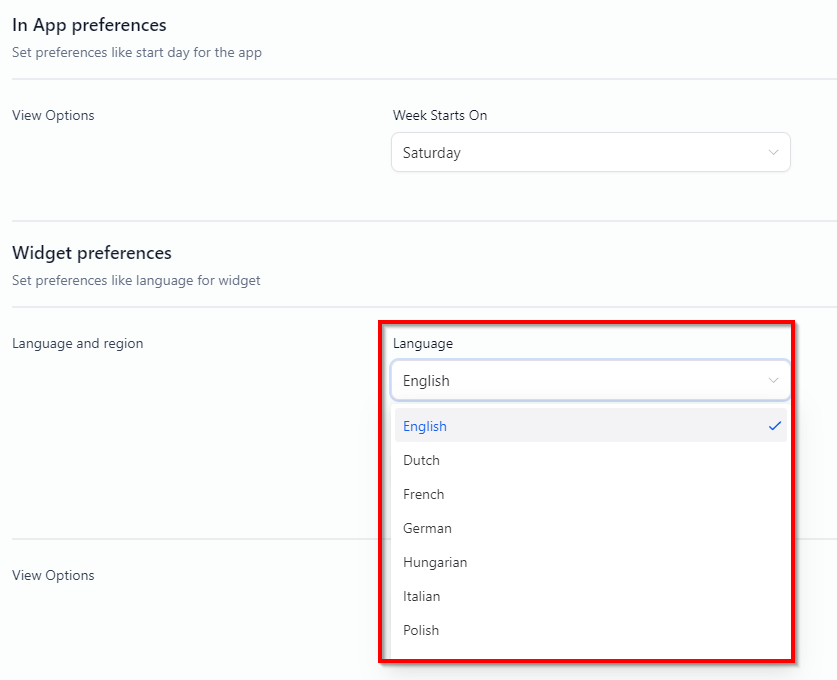
**Language and Region**

Lets you choose the language for your calendar. From the dropdown menu, you can select the language of your choice.

<figure><img src="https://3652255517-files.gitbook.io/~/files/v0/b/gitbook-x-prod.appspot.com/o/spaces%2Fz59Vqr25L1jt6xe60FDS%2Fuploads%2Fgit-blob-4984979a73160c03605b41a3888450863f226bcf%2F16.%20Language%20Preference.png?alt=media" alt=""><figcaption></figcaption></figure>

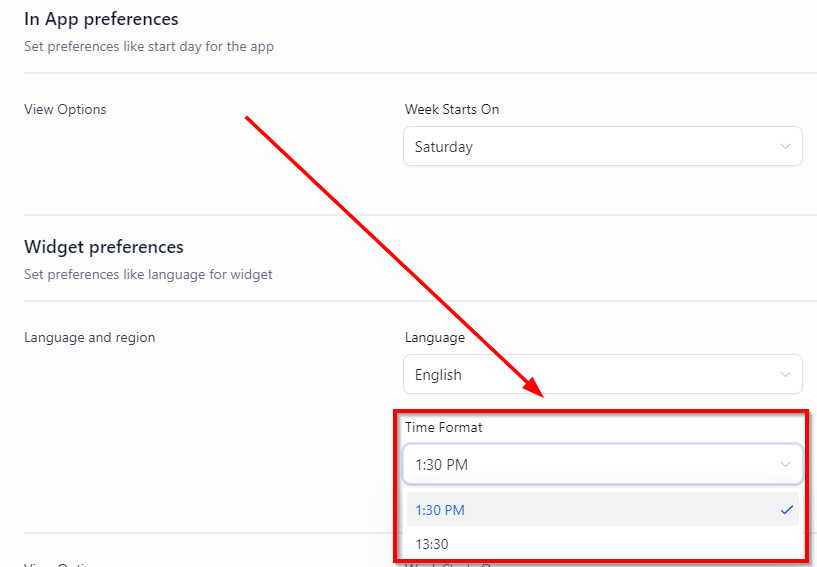
**Time Format**

Time format lets you select between a 24-hour clock and a 12-hour clock for calendar operations.

<figure><img src="https://3652255517-files.gitbook.io/~/files/v0/b/gitbook-x-prod.appspot.com/o/spaces%2Fz59Vqr25L1jt6xe60FDS%2Fuploads%2Fgit-blob-ec182d8568a9c283aa34a93be899d894bd993caf%2F17.%20Time%20Format.png?alt=media" alt=""><figcaption></figcaption></figure>

**View Options**

Allows you to set the preferences for widgets.

* **Week Starts On** Choose which day you want your calendar week to begin. We suggest Sunday or Monday, but this is entirely up to you.​

<figure><img src="https://3652255517-files.gitbook.io/~/files/v0/b/gitbook-x-prod.appspot.com/o/spaces%2Fz59Vqr25L1jt6xe60FDS%2Fuploads%2Fgit-blob-ed9da763d10b7c5eed3442bd2e0d2de42b199935%2F18.%20Widget%20view%20options%20(1).png?alt=media" alt=""><figcaption></figcaption></figure>

{% hint style="success" %}
![](https://953459931-files.gitbook.io/~/files/v0/b/gitbook-x-prod.appspot.com/o/spaces%2F2RjsAyiXnDibDuY7JKcM%2Fuploads%2FhwkPSRbha4EtSS8KGVOD%2Fspaces_z59Vqr25L1jt6xe60FDS_uploads_git-blob-cf51f0086862d8cfc8398f081572e0b8636bfd08_Start%20Help%20Guide%20Button%20\(3\).png?alt=media\&token=cf52908b-56f1-43e2-9150-3ca2630324ef)

Click the **"Start Help Guide"** button in this section of your CRM to start an interactive, guided tour and learn more about the components found in this section and how to use them!
{% endhint %}