# Teams

In this section, you can add, edit, or remove teams (or pools) of users in your system. This can be helpful if you have a sales team, customer service team, etc., and need to differentiate between them.

{% hint style="warning" %}
NOTE: Depending on your user permissions, you may not have access to all of the components.
{% endhint %}

### **Team List** <a href="#team-list" id="team-list"></a>

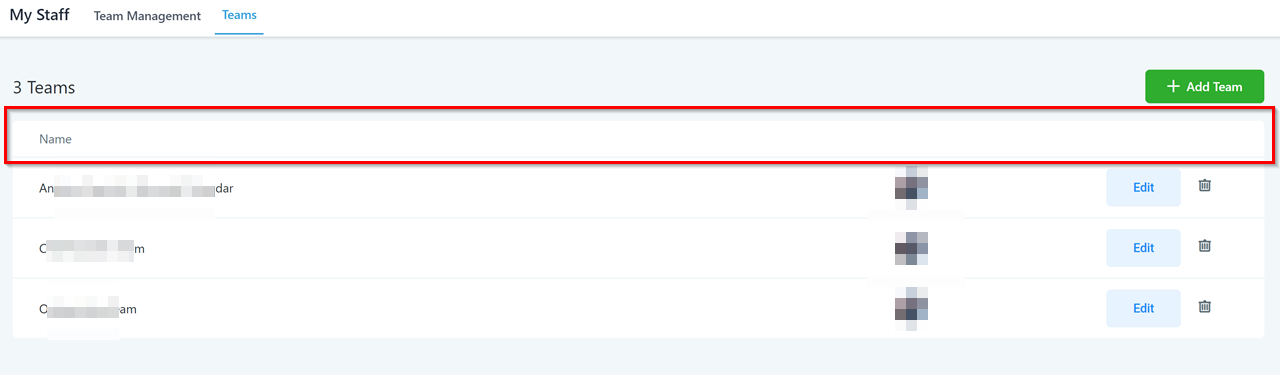
In this area, you will see all the teams you have created under this account.

<figure><img src="https://3652255517-files.gitbook.io/~/files/v0/b/gitbook-x-prod.appspot.com/o/spaces%2Fz59Vqr25L1jt6xe60FDS%2Fuploads%2Fgit-blob-ee496726dc91837119677d0dc77dafa393c54a4b%2FMy%20staff%20-%20teams%20-%20Teams.png?alt=media" alt=""><figcaption></figcaption></figure>

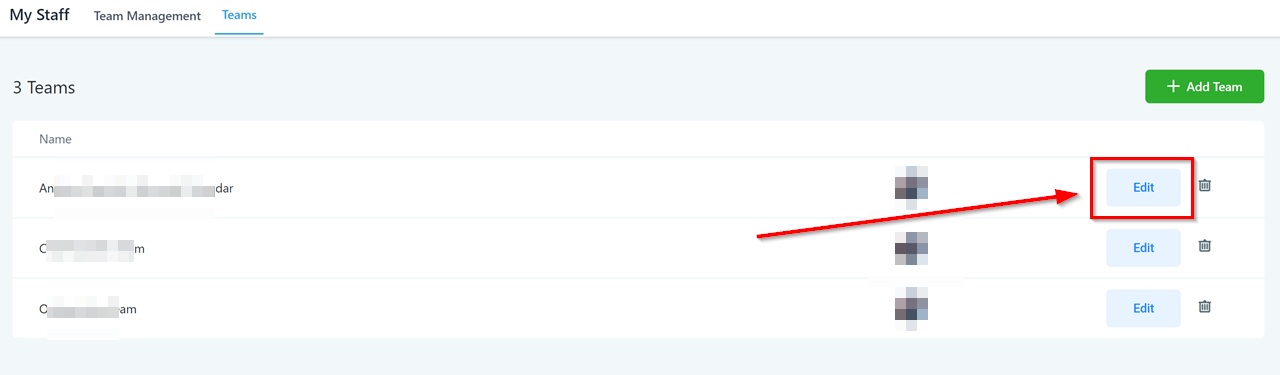
#### **Edit Current Teams** <a href="#edit-current-teams" id="edit-current-teams"></a>

Click here to edit your created team information.

<figure><img src="https://3652255517-files.gitbook.io/~/files/v0/b/gitbook-x-prod.appspot.com/o/spaces%2Fz59Vqr25L1jt6xe60FDS%2Fuploads%2Fgit-blob-a6374e72be1a1caa1154070f7bc1d661566b83da%2FMy%20staff%20-%20teams%20-%20Edit%20Current%20Teams.png?alt=media" alt=""><figcaption></figcaption></figure>

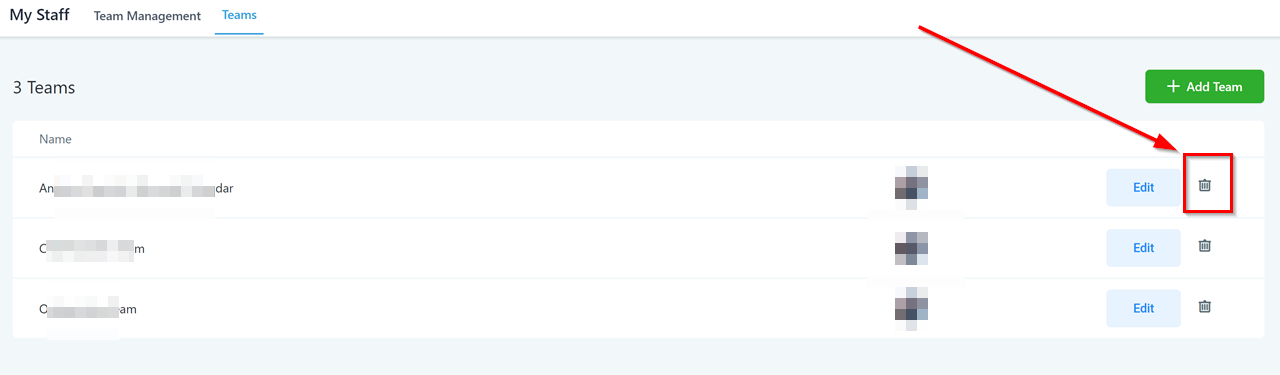
#### **Delete Teams** <a href="#delete-teams" id="delete-teams"></a>

Click here to delete the team entirely.

<figure><img src="https://3652255517-files.gitbook.io/~/files/v0/b/gitbook-x-prod.appspot.com/o/spaces%2Fz59Vqr25L1jt6xe60FDS%2Fuploads%2Fgit-blob-852b65f64919a40888c30cd7579eac932ad75770%2FMy%20staff%20-%20teams%20-%20Delete%20Teams.png?alt=media" alt=""><figcaption></figcaption></figure>

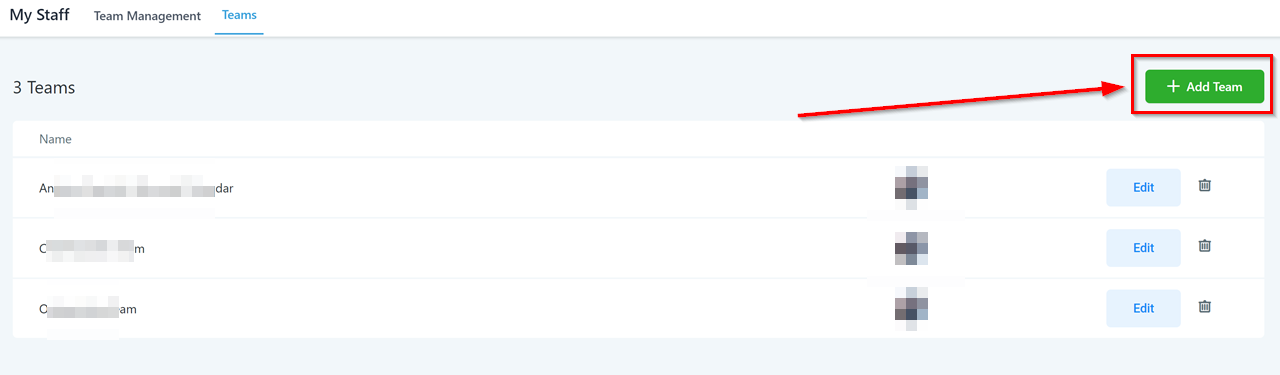
### **Add New Teams** <a href="#add-new-teams" id="add-new-teams"></a>

Click here to add new teams.

<figure><img src="https://3652255517-files.gitbook.io/~/files/v0/b/gitbook-x-prod.appspot.com/o/spaces%2Fz59Vqr25L1jt6xe60FDS%2Fuploads%2Fgit-blob-24099152fbdc93adf5653c2967383187c6d7fea1%2FMy%20staff%20-%20teams%20-%20Add%20New%20Teams.png?alt=media" alt=""><figcaption></figcaption></figure>

#### **Edit Team Information** <a href="#edit-team-information" id="edit-team-information"></a>

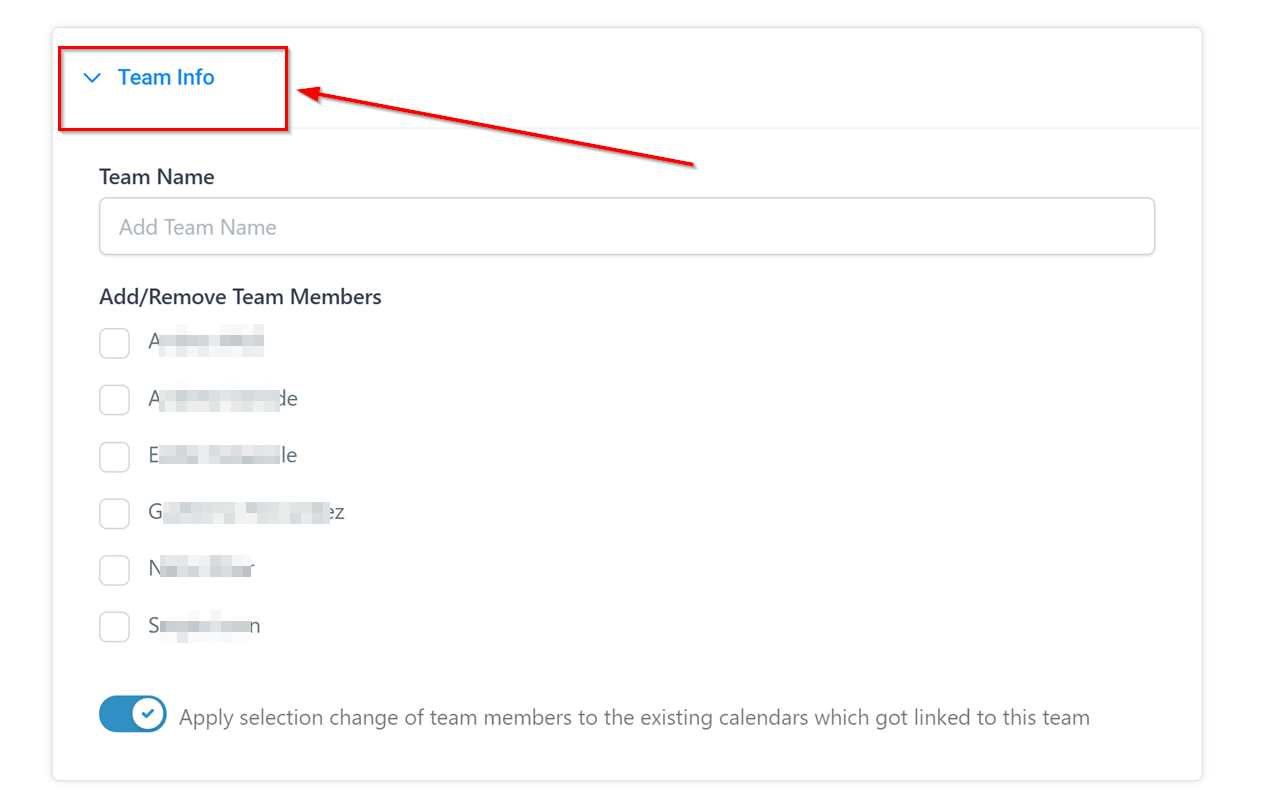
Create your team name and add team members to the team you are creating.

If you do not have any team members created under this account, you will need to go to the "Team Management" tab and create a team member first.

<figure><img src="https://3652255517-files.gitbook.io/~/files/v0/b/gitbook-x-prod.appspot.com/o/spaces%2Fz59Vqr25L1jt6xe60FDS%2Fuploads%2Fgit-blob-0a704fa3ad831bafa15d4ec608465bd598c58479%2FMy%20staff%20-%20teams%20-%20team%20info.png?alt=media" alt=""><figcaption></figcaption></figure>

#### **Configure Team Calendar** <a href="#configure-team-calendar" id="configure-team-calendar"></a>

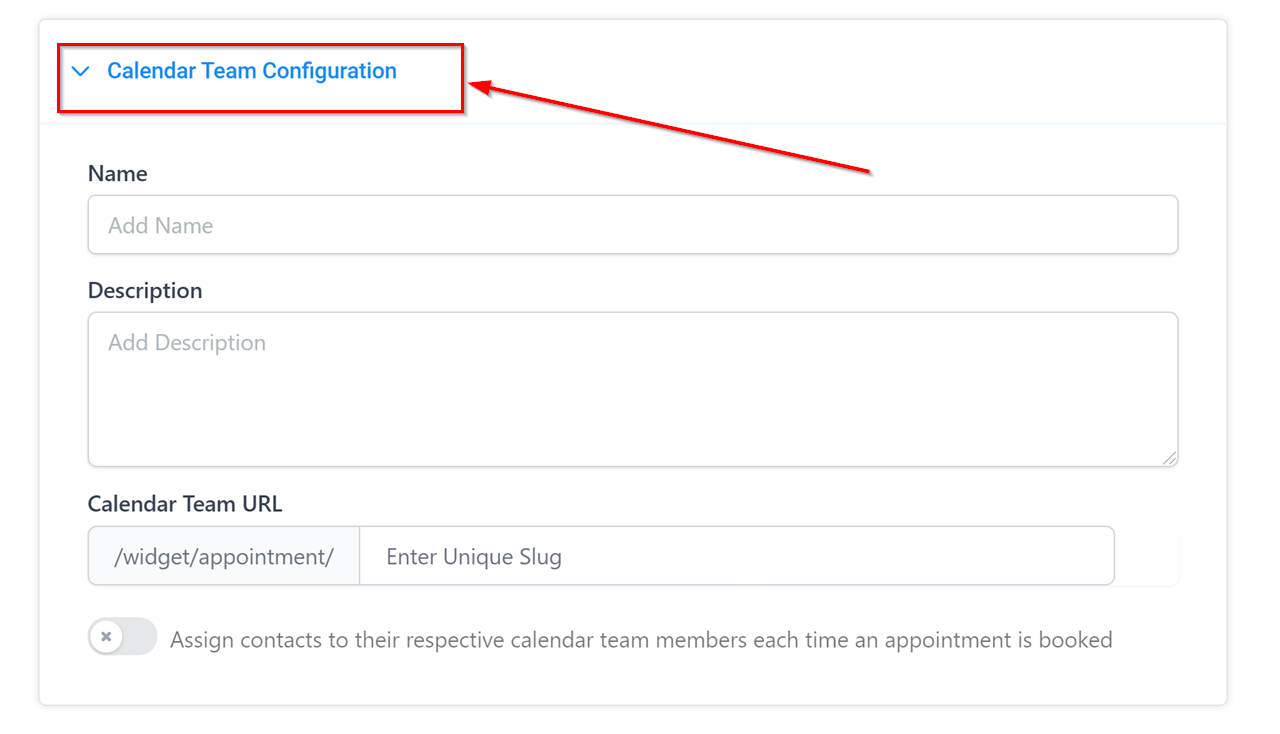
Configure your new teams' calendar and give it a unique URL slug. This new calendar will appear as its own editable calendar in the "calendar" settings tab.

<figure><img src="https://3652255517-files.gitbook.io/~/files/v0/b/gitbook-x-prod.appspot.com/o/spaces%2Fz59Vqr25L1jt6xe60FDS%2Fuploads%2Fgit-blob-6ae757a16317a95fad501df81a499b819cf263db%2FMy%20staff%20-%20teams%20-%20team%20calendar%20config.png?alt=media" alt=""><figcaption></figcaption></figure>

{% hint style="success" %}
​![](https://3652255517-files.gitbook.io/~/files/v0/b/gitbook-x-prod.appspot.com/o/spaces%2Fz59Vqr25L1jt6xe60FDS%2Fuploads%2Fgit-blob-cf51f0086862d8cfc8398f081572e0b8636bfd08%2FStart%20Help%20Guide%20Button.png?alt=media)​

Click the **"Start Help Guide"** button in this section of your CRM to start an interactive, guided tour and learn more about the components found in this section and how to use them!
{% endhint %}