# Content AI

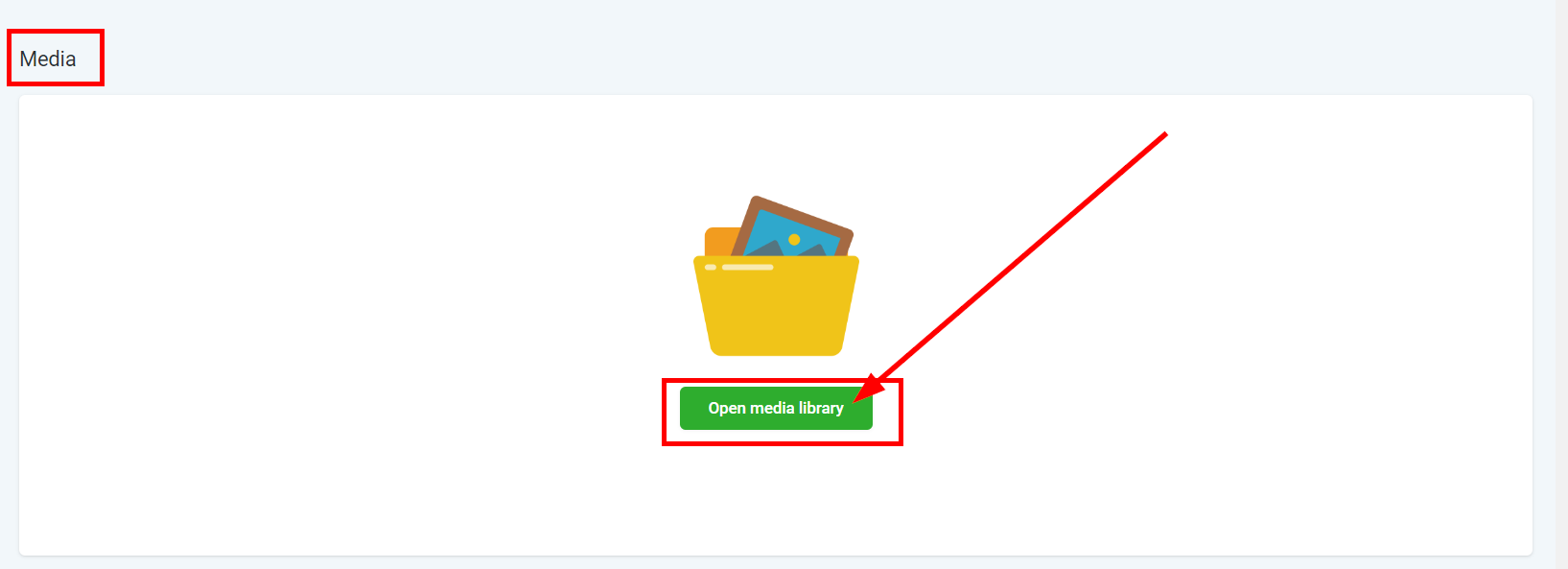
In this section, You will learn how to create an Image using AI. Upon navigating the Media Section, click the **Open Media Library** button to start creating these Images using AI. This feature is a paid service and will incur charges based on usage.

<figure><img src="https://3652255517-files.gitbook.io/~/files/v0/b/gitbook-x-prod.appspot.com/o/spaces%2Fz59Vqr25L1jt6xe60FDS%2Fuploads%2Fgit-blob-51a508d692433743bf1e93edac2ea207e87255f6%2FSettings-Media_1.png?alt=media" alt=""><figcaption><p>Click to start creating images using AI</p></figcaption></figure>

### Overview <a href="#overview" id="overview"></a>

Images created using Content AI can be used in a variety of places within your CRM including funnels/websites, social media, and more! To create an image using Content AI, click on the **Create image using AI** button.

<figure><img src="https://3652255517-files.gitbook.io/~/files/v0/b/gitbook-x-prod.appspot.com/o/spaces%2Fz59Vqr25L1jt6xe60FDS%2Fuploads%2Fgit-blob-57a0d1ea9334cb0ed23bf1bc789f24282173cd29%2Fimage%20(4).png?alt=media" alt=""><figcaption></figcaption></figure>

{% hint style="info" %}
**Please Note:**

This feature is a paid service and will incur charges based on usage.
{% endhint %}

#### Describe Your Image. <a href="#describe-your-image." id="describe-your-image."></a>

Describe the image you want to create, and AI will give you samples you can choose from. Click **Try an example** to get a generated sample which will help you better understand how the AI works.

<figure><img src="https://3652255517-files.gitbook.io/~/files/v0/b/gitbook-x-prod.appspot.com/o/spaces%2Fz59Vqr25L1jt6xe60FDS%2Fuploads%2Fgit-blob-9514bcac5b379457754db8db23485f5b641b36c8%2FSettings-Media_2%20(1).png?alt=media" alt=""><figcaption><p>Describe your image</p></figcaption></figure>

#### The number of variations. <a href="#the-number-of-variations." id="the-number-of-variations."></a>

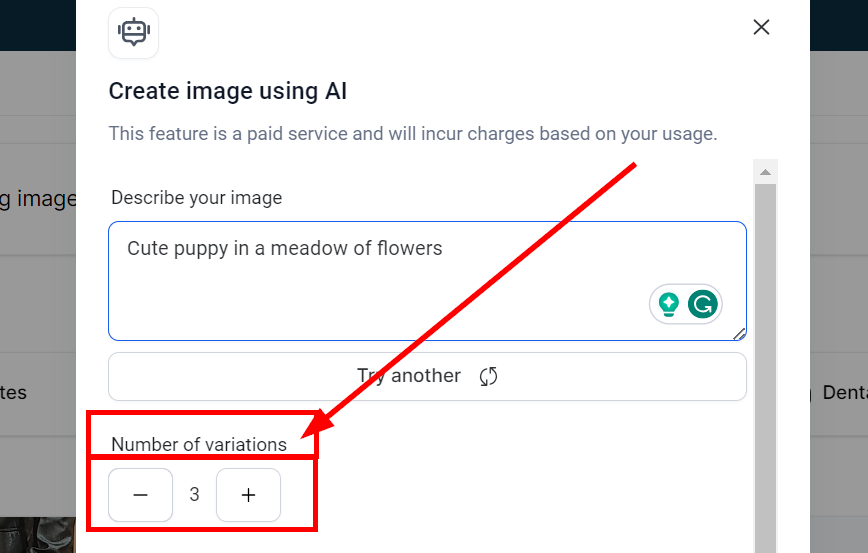
Select the number of variations you want Content AI to create. For example, if you select 3, Content AI will generate 3 different images based on your description.

<figure><img src="https://3652255517-files.gitbook.io/~/files/v0/b/gitbook-x-prod.appspot.com/o/spaces%2Fz59Vqr25L1jt6xe60FDS%2Fuploads%2Fgit-blob-47909524562e54882177c0d253beb64585f24291%2FSettings-Media_3.png?alt=media" alt=""><figcaption><p>Select number of variation</p></figcaption></figure>

#### Choose your image style. <a href="#choose-your-image-style." id="choose-your-image-style."></a>

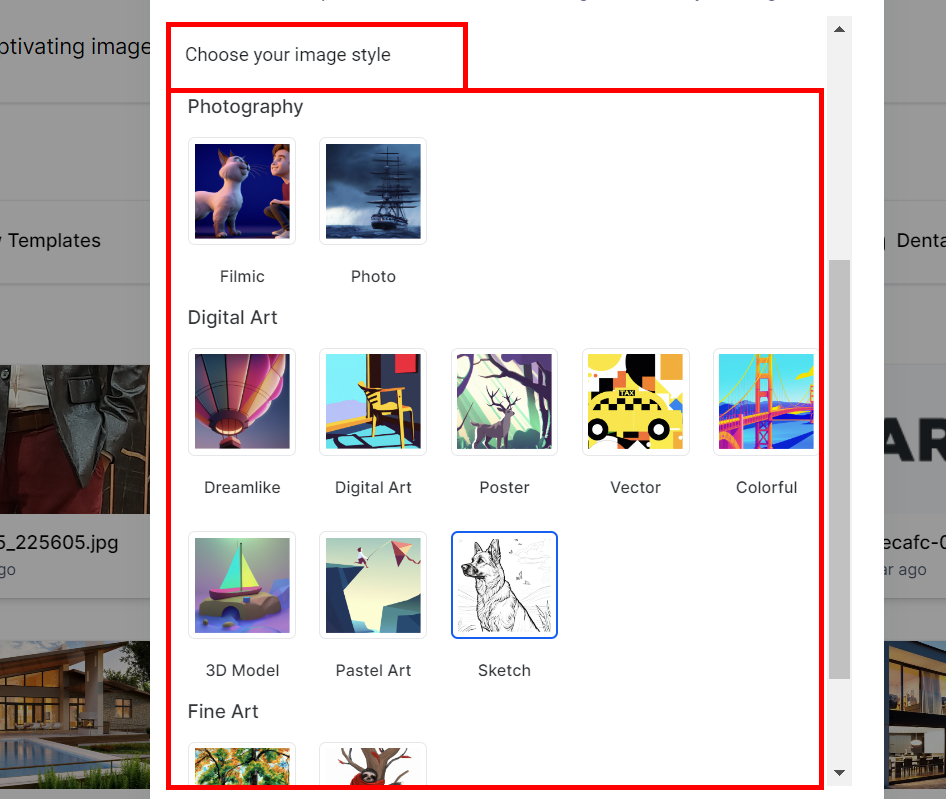
Select the image style you would like for your image. You have options such as Photography, Digital Art, and Fine Art.Once you click on the image style you would like to use, click the **Generate** button to have Content AI generate your image.

<figure><img src="https://3652255517-files.gitbook.io/~/files/v0/b/gitbook-x-prod.appspot.com/o/spaces%2Fz59Vqr25L1jt6xe60FDS%2Fuploads%2Fgit-blob-6a07112960e117a82c5322c2134a72f2eb29273b%2FSettings-Media_4.png?alt=media" alt=""><figcaption><p>Select image style</p></figcaption></figure>

#### Generate AI Image <a href="#generate-ai-image" id="generate-ai-image"></a>

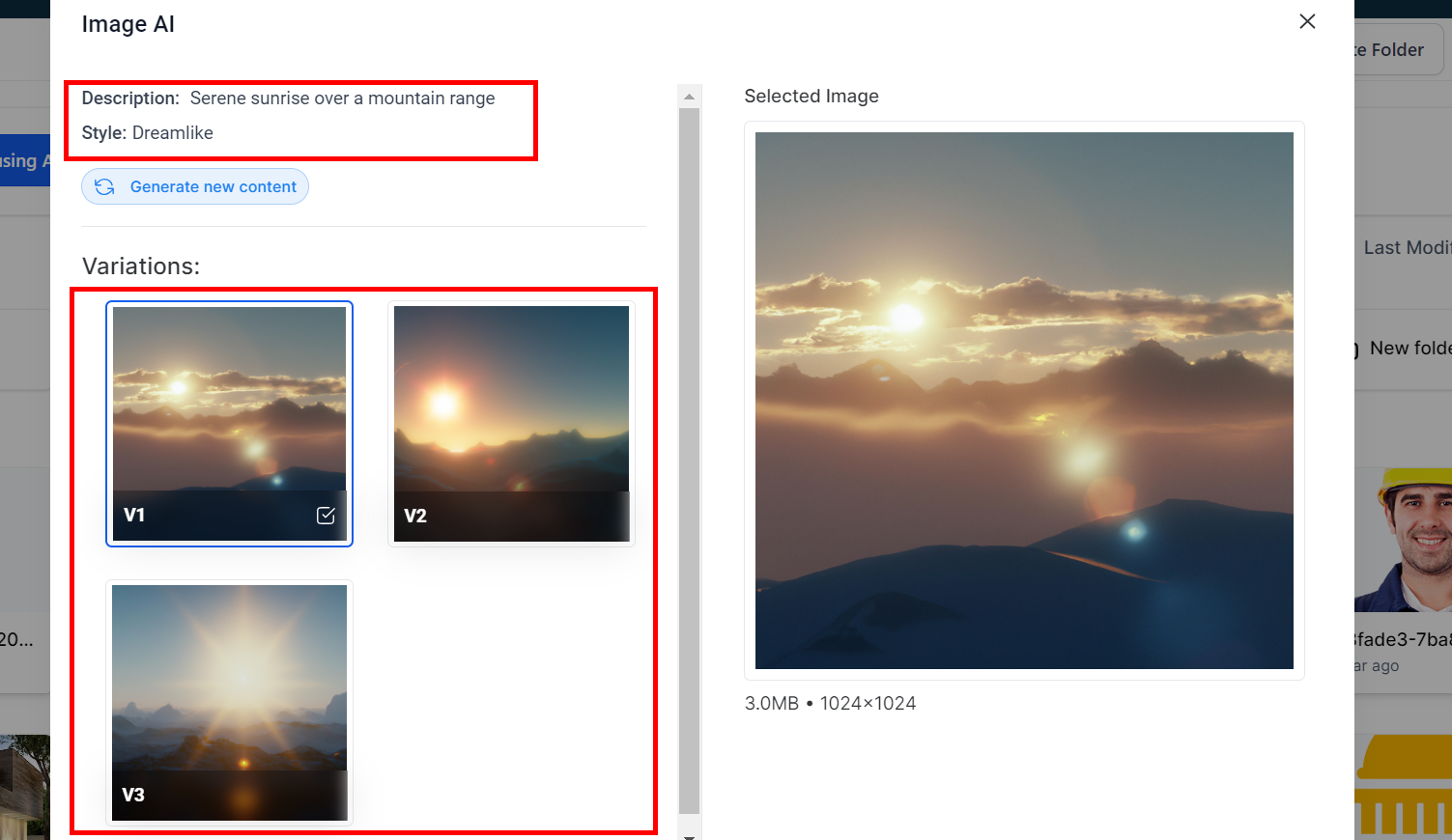
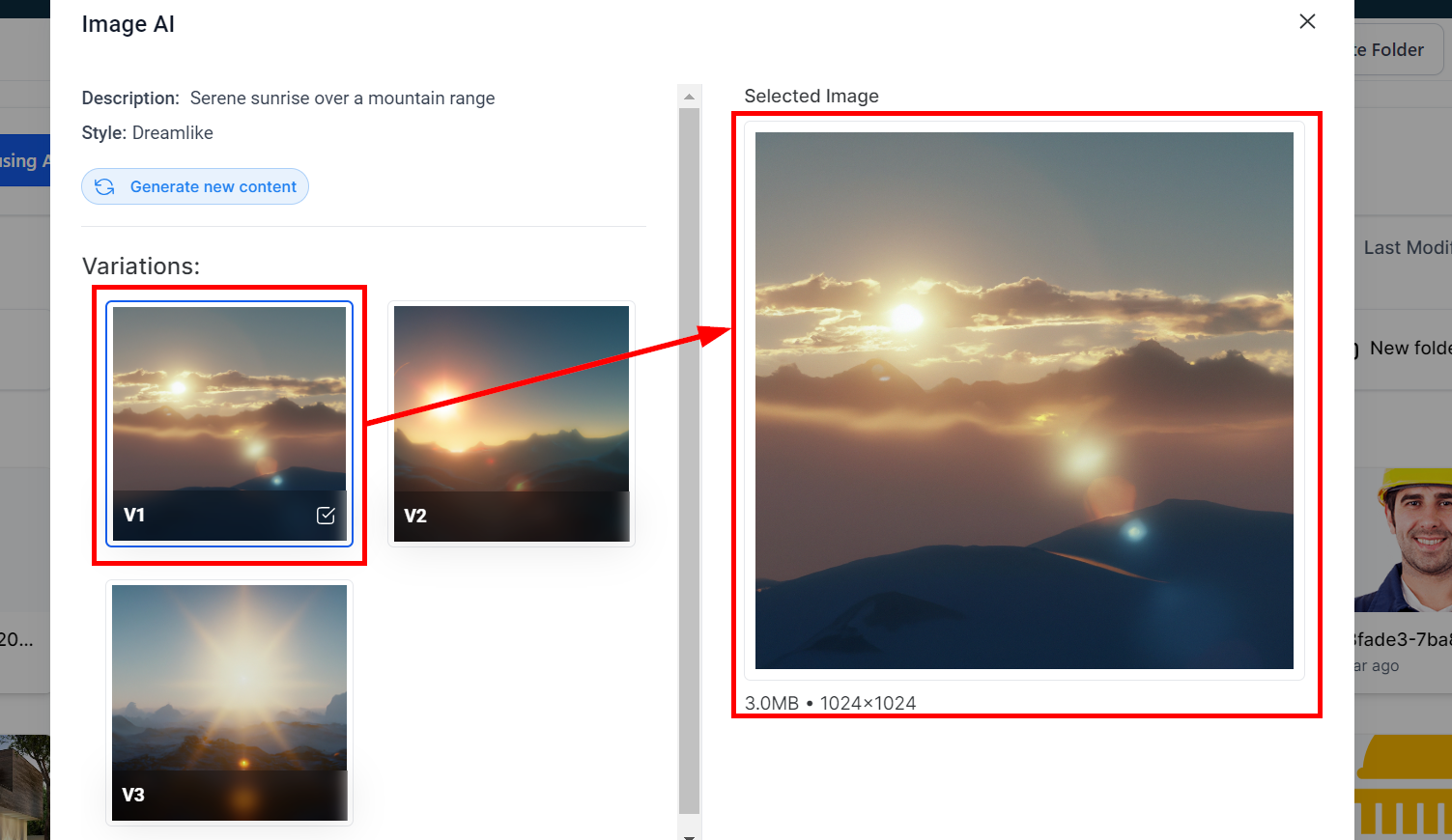
Once you have clicked the Generate button, you will see the images variations the Content AI created. The Description and Style that you have chosen will show in the top left of the pop-up.

<figure><img src="https://3652255517-files.gitbook.io/~/files/v0/b/gitbook-x-prod.appspot.com/o/spaces%2Fz59Vqr25L1jt6xe60FDS%2Fuploads%2Fgit-blob-6aeae4832be81d9837812e0938dbdf3474804794%2FSettings-Media_5.png?alt=media" alt=""><figcaption><p>Generated AI image</p></figcaption></figure>

**Generate New Content**

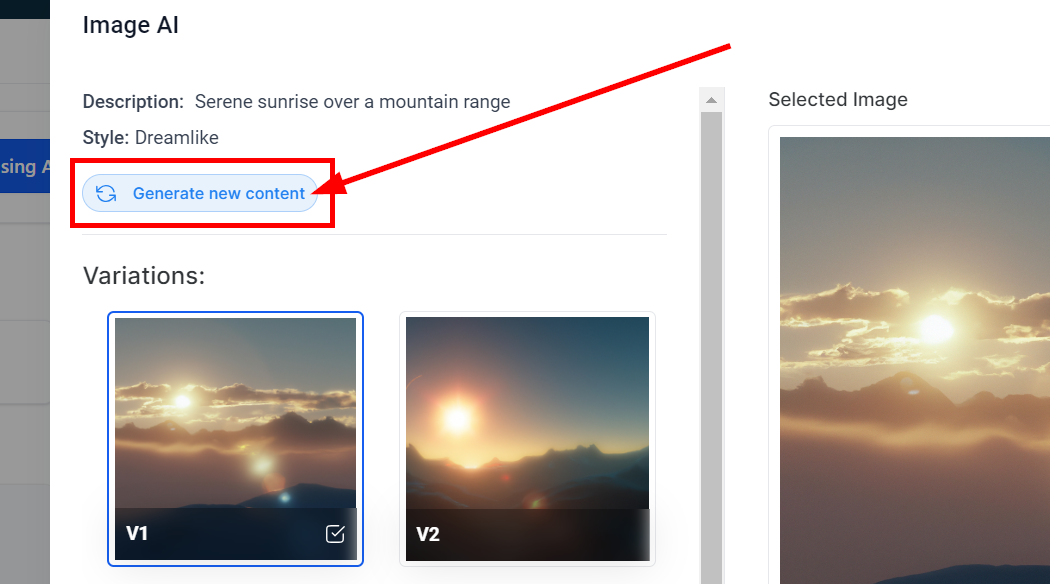
If you want to make edits to your previous choices, click on the **Generate new content** button to return you to the Content AI page.

<figure><img src="https://3652255517-files.gitbook.io/~/files/v0/b/gitbook-x-prod.appspot.com/o/spaces%2Fz59Vqr25L1jt6xe60FDS%2Fuploads%2Fgit-blob-847be4518d692b4a59d21031897ead4a295edaa2%2FSettings-Media_6.png?alt=media" alt=""><figcaption><p>Generate new content</p></figcaption></figure>

**Image Preview**

To preview or select an image, click on the image and you will see it appear in the right side of the pop-up.

<figure><img src="https://3652255517-files.gitbook.io/~/files/v0/b/gitbook-x-prod.appspot.com/o/spaces%2Fz59Vqr25L1jt6xe60FDS%2Fuploads%2Fgit-blob-89c142360ebceba6c61c36154a5986b73af25b49%2FSettings-Media_7.png?alt=media" alt=""><figcaption><p>Preview image</p></figcaption></figure>

**Cancel or Continue**

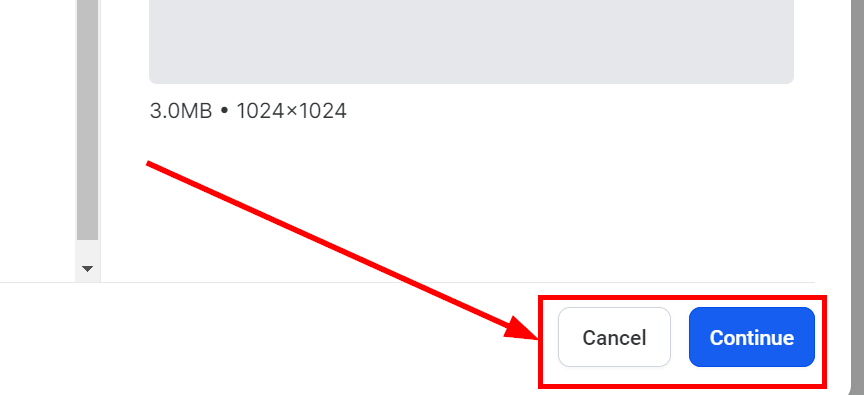
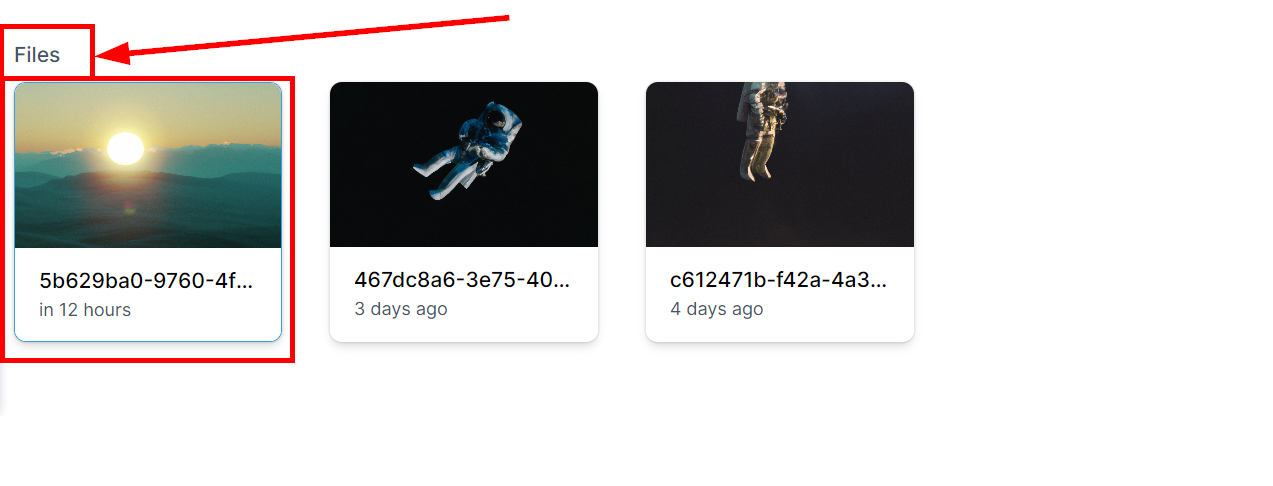
Once you have selected the image you would like to use, click the **Continue** button to save your Media Library; otherwise, click the **Cancel** button.
<div><figure><img src="https://953459931-files.gitbook.io/~/files/v0/b/gitbook-x-prod.appspot.com/o/spaces%2F2RjsAyiXnDibDuY7JKcM%2Fuploads%2Foor4QEwf52iIo4EFIWxf%2Fspaces_z59Vqr25L1jt6xe60FDS_uploads_git-blob-93e0e13d3bab878f32660e3c6a7cf08d54cbcf5d_Settings-Media_8.png?alt=media&#x26;token=989a0c17-4897-4e0a-bb6a-435e417dd3c7" alt=""><figcaption><p>Cancel or continue</p></figcaption></figure> <figure><img src="https://953459931-files.gitbook.io/~/files/v0/b/gitbook-x-prod.appspot.com/o/spaces%2F2RjsAyiXnDibDuY7JKcM%2Fuploads%2F8mxEyieVi4zORK3Wp3fe%2Fspaces_z59Vqr25L1jt6xe60FDS_uploads_git-blob-ca13f521ab451d9541320adccdeeb0539a1f5725_Settings-Media_9.png?alt=media&#x26;token=5a98fcd1-9d24-4674-baec-98e2cb52773f" alt=""><figcaption><p>Saved image</p></figcaption></figure></div>